


Sharpen AI-generated clips
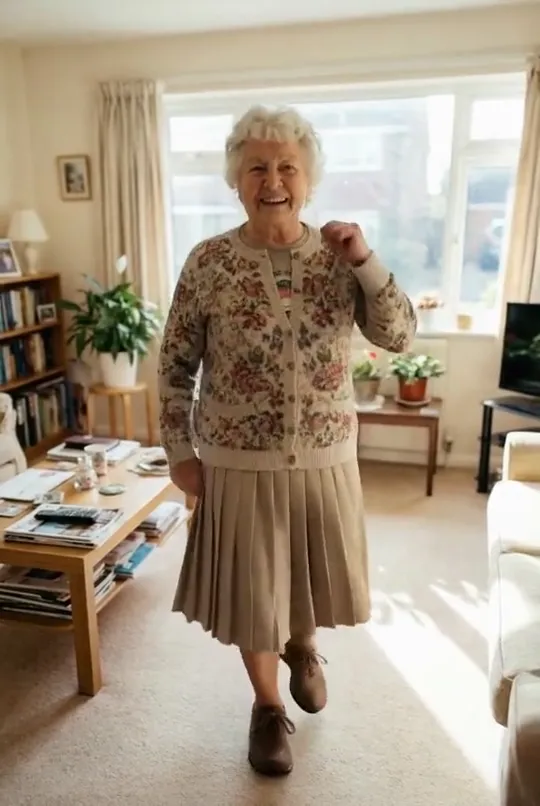
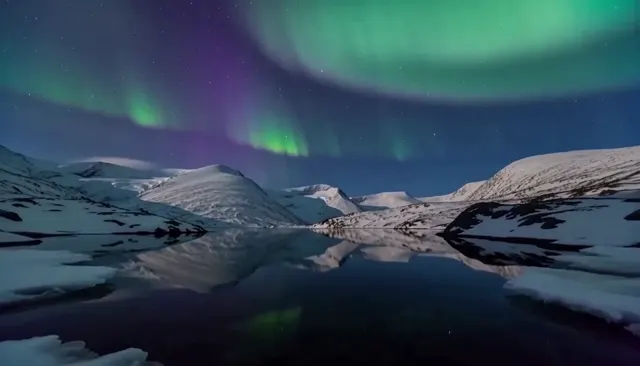
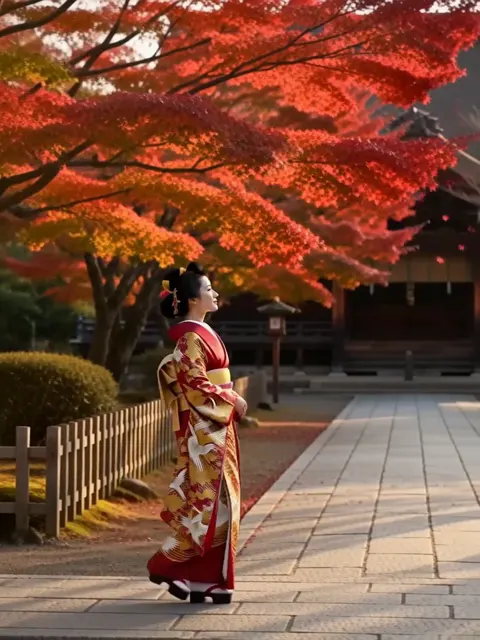
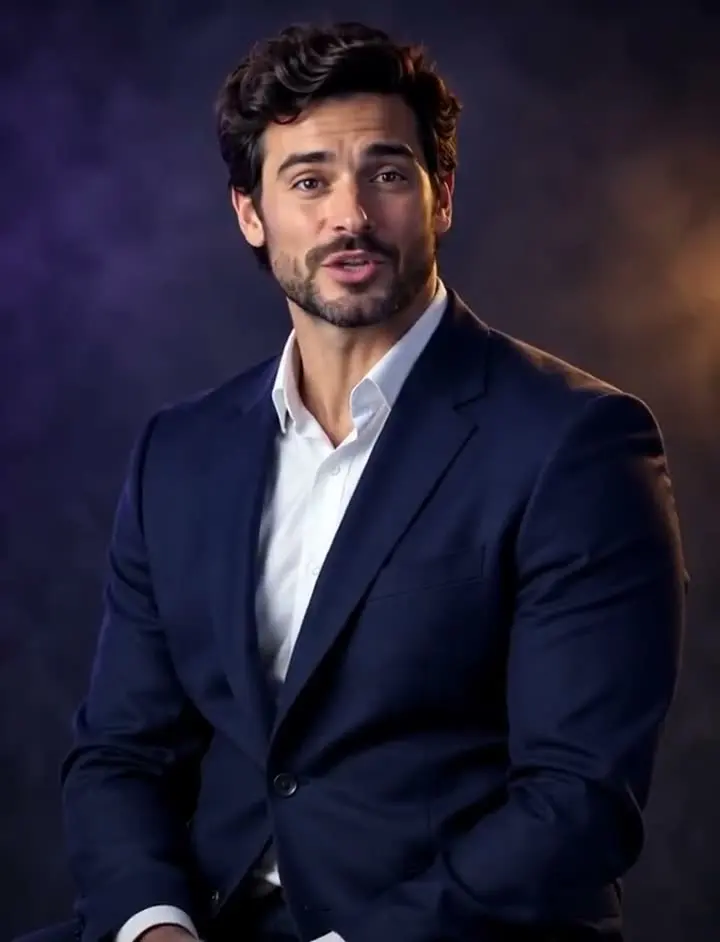
Take 768p clips from text to video or image to video up to 1080p before editing.
Upscale short videos to sharp 1080p with Topaz AI, recovering detail and reducing noise.
Saved to your workspace history.
The RegiAI AI video upscaler takes a short, low resolution clip and rebuilds it at 1080p and 30 frames per second with Topaz AI. It adds back detail, cleans up noise and compression blocks, and gives you a sharper MP4 that holds up on a big screen.
It is made for short clips of up to 10 seconds: AI-generated videos from the AI Video Generator, old phone footage, screen-recorded snippets and social clips. For still images, use the AI Image Upscaler. For black and white footage, colorize it first with the AI Video Colorizer and then upscale the result here.
MP4 or MOV up to 10 seconds and 50 MB. Any resolution below 1080p works.
Topaz AI rebuilds detail and outputs 1080p at 30 fps. It usually takes about a minute.
Save the result, or open it later from My creations for up to 30 days.
Take 768p clips from text to video or image to video up to 1080p before editing.
Give 480p or 720p clips from older devices a cleaner, more detailed look.
Upscale downloaded or compressed clips you own before reposting them.
Make small clips match the rest of a 1080p edit.
Cleaner detail on product shots for ads and listings.
Finish colorized or restyled clips with a sharper 1080p version.
Short clips of family moments from older phones, sharpened for a slideshow or a big-screen TV.
Low-resolution screen clips and demos, cleaned up for course platforms.
A normal resize only stretches the existing pixels, so a 480p clip at 1080p looks soft and blocky. An AI video upscaler predicts the missing detail: edges, textures, hair, text and faces are rebuilt so the result looks as if it was filmed at a higher resolution. It also reduces the noise and compression artifacts that make small videos look muddy.
RegiAI uses Topaz AI video upscaling with a fixed target of 1080p at 30 fps. That is the right size for YouTube, social platforms and most editing timelines.
What to expect:
Upscaling is also useful when you mix sources. If most of your edit is 1080p and one clip is 480p, the small clip stands out as soft. Upscaling it first makes the whole video look consistent, even if viewers never notice why.
Search terms like video upscaler, upscale video and video enhancer all describe the same job. The difference with an AI video upscaler is that it treats the clip as a sequence, so detail stays steady from frame to frame instead of flickering as it would with frame-by-frame image upscaling.
Mind the input limits: MP4 or MOV, up to 10 seconds and 50 MB. Most short clips are well under that, but a 10 second 4K phone clip can be larger. That footage does not need upscaling anyway, since it is already above 1080p.
Each upscale costs $0.80 for a video of up to 10 seconds, paid per use from your credit balance. There is no subscription. If an upscale fails, the $0.80 is refunded automatically.
You get a 1080p, 30 fps MP4 with no watermark. It stays in My creations for 30 days, and you can delete it at any time. Only upload footage you have the right to use.
Is it worth it? If a clip will be shown full screen, used in a 1080p edit or cropped later, upscaling first gives you much more room. For a clip that will only ever play small in a feed, the original may be good enough. Compare the two on the screen where people will watch before you upscale a whole series.
For still frames from a video, such as a thumbnail, the AI Image Upscaler goes further than video upscaling and is cheaper per image.
Upscaling is usually the last step in a RegiAI video workflow. Generate or film the clip, restyle or colorize it if you want, extend it, add sound with Video to Audio AI, and upscale the finished clip last so none of the added detail is lost in later steps.
Still stuck? Contact us.