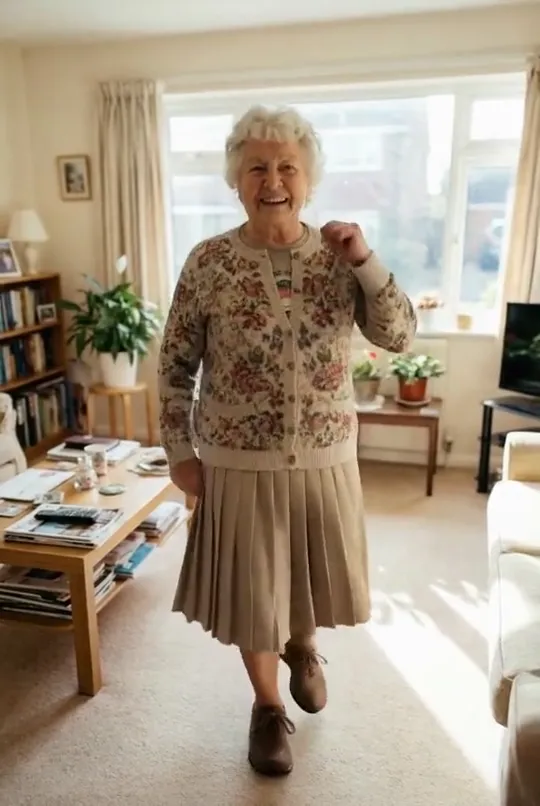
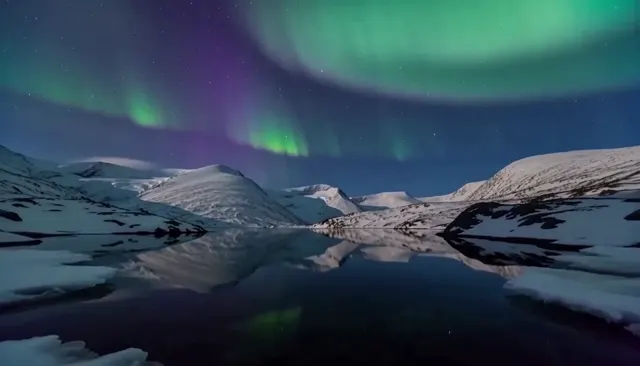

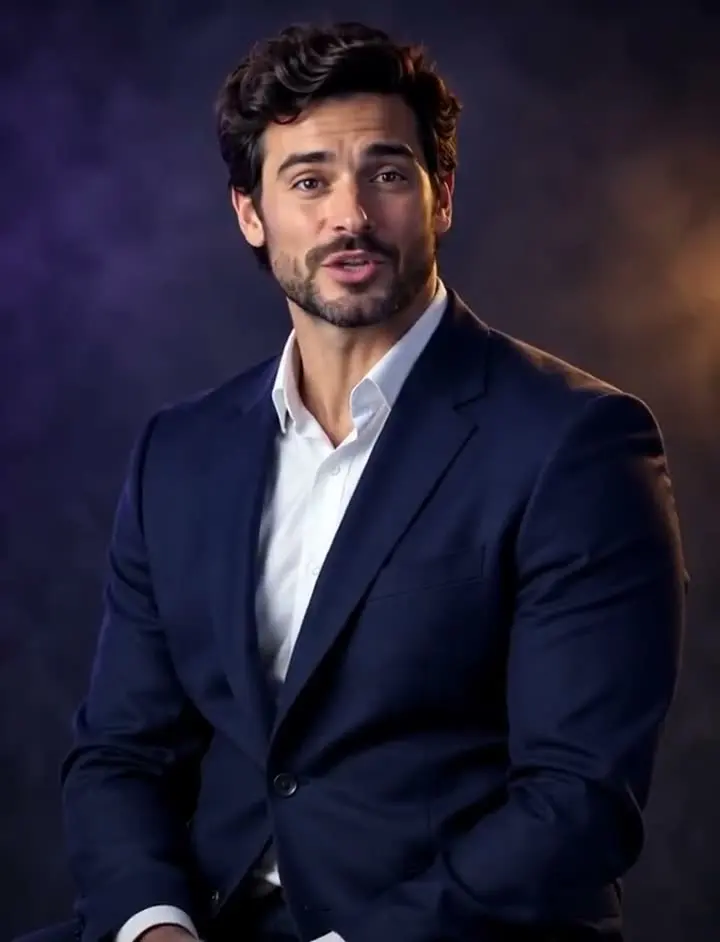
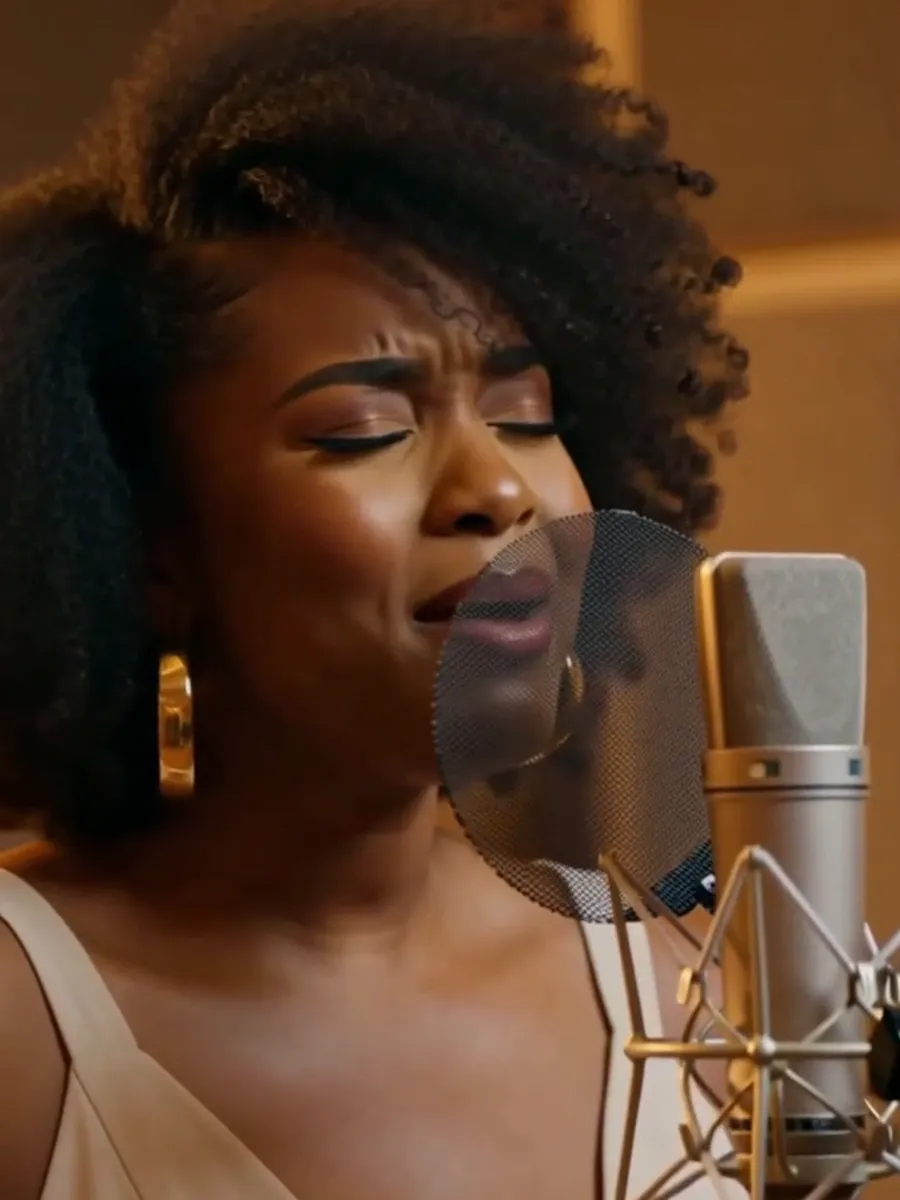




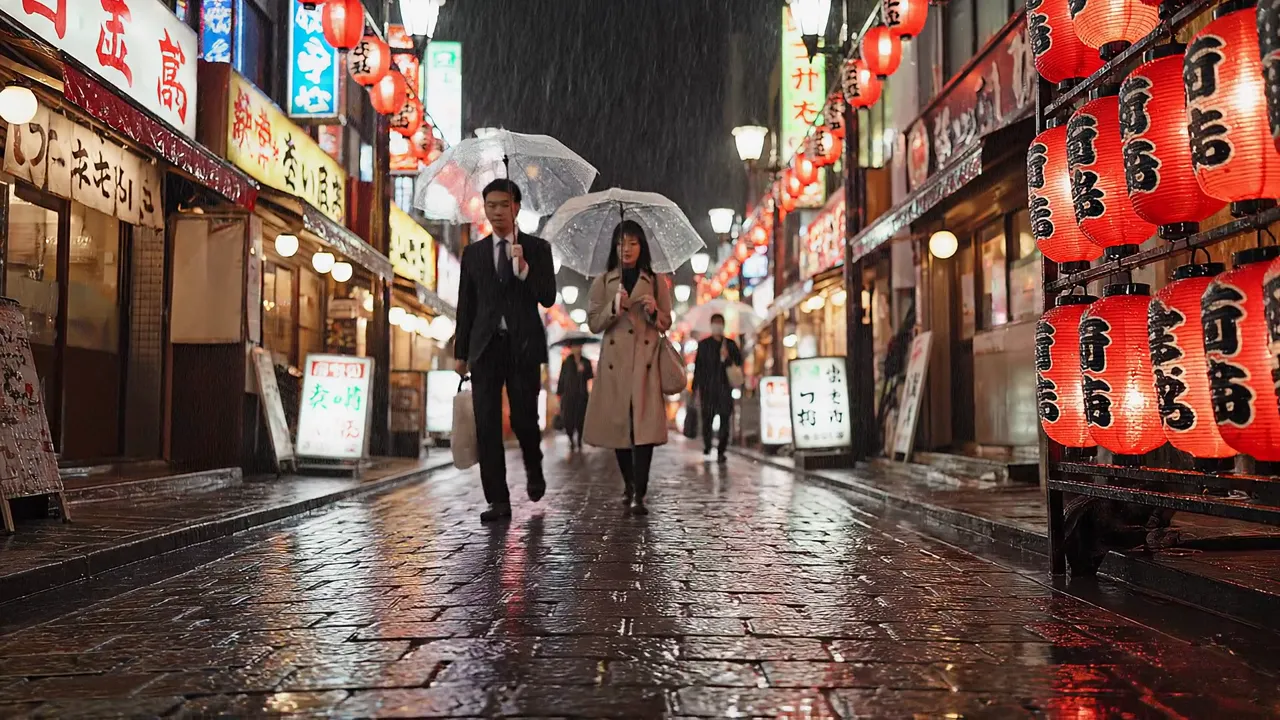
B-roll on demand
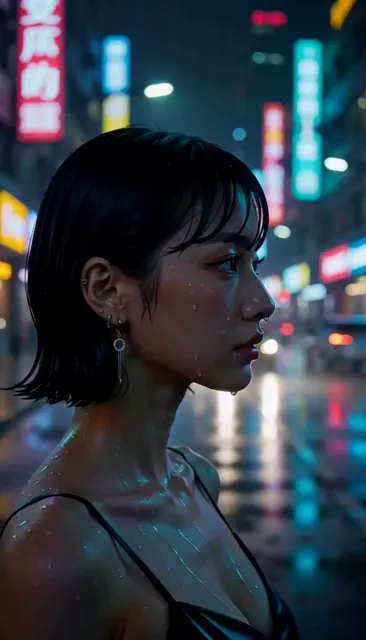
City streets, nature, food close-ups and office scenes to cover cuts in your edit.
Describe a scene and get a 5 or 10 second HD video with sound, in any aspect ratio.
Saved to your workspace history.
With this text to video AI you write a few sentences and get back a short HD clip with sound. There is nothing to upload: the model builds the subject, the setting, the light and the camera move from your words, in the aspect ratio you choose.
It is the quickest way to get B-roll, mood shots and social clips from an idea. When a specific face or product has to appear, animate a photo with Image to Video AI instead. The AI Video Generator combines both modes, and AI Script to Video turns a topic into an edited short with narration and captions.
Subject, action, place and camera, in up to 1,500 characters. Start from one of the example prompts if you like.
5 or 10 seconds, and 16:9, 9:16, 1:1, 4:3 or 3:4 depending on where it will be posted.
Most clips are ready in 1 to 3 minutes. Download the MP4 or open it later from My creations.
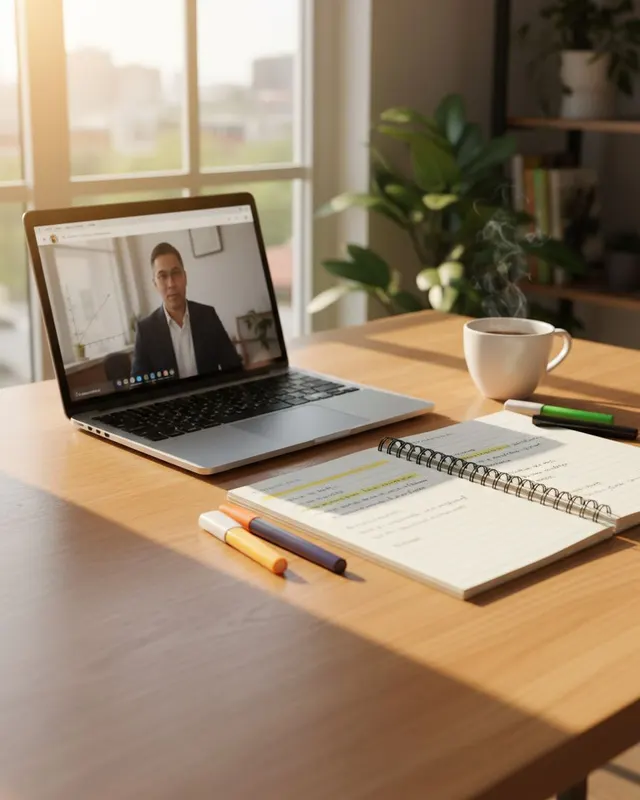
City streets, nature, food close-ups and office scenes to cover cuts in your edit.
Vertical 9:16 clips for TikTok, Instagram Reels and YouTube Shorts.
Slow, looping-style scenes behind titles, talks and slides.
Show a director, client or team what a shot could look like before anyone films it.
Moody visuals for lyric videos, playlists and audio posts.
Illustrate a history lesson, a science idea or a place you are talking about.
Try several visual directions for an ad before you book a shoot or brief an editor.
Cities, beaches and mountains you want to feature, even without your own footage.
The model reads your prompt like a one-line shot description. The clearer the shot, the better the video. Try this order:
Put together: "A golden retriever runs along the shoreline at sunset, spray in the air, low tracking shot, warm film look." Keep one action per clip; a 5 or 10 second video cannot hold a whole plot. If a result is close but not right, change one part of the prompt at a time so you learn what the model responds to.
A few things text to video AI still finds hard: readable text and logos, hands doing detailed tasks, exact numbers of people or objects, and complex interactions between several characters. Keep those out of the prompt, or add them later in your editor, and you will waste far fewer generations.
Pick the format before you generate, because text to video cannot be re-framed later without cropping.
A 5 second clip costs $0.50 and is ideal for testing prompts and for fast social cuts. A 10 second clip costs $1.00 and gives slow camera moves room to breathe. Once you have a shot you like, you can extend it by about 6 seconds with the AI Video Extender or sharpen it to 1080p with the AI Video Upscaler.
Matching the platform from the start also saves money. A 16:9 clip cropped to vertical loses most of the frame, and the subject may end up cut in half. If you need the same scene in two formats, generate it twice with the same prompt rather than cropping.
Planning a series? Keep a short note of the prompts that worked, with the aspect ratio and length. Reusing the same style words, like the same lighting and film look, helps separate clips feel like they belong to one video.
Text to video gives you one AI-generated shot. The other tools cover the rest of a typical video workflow:
All of them are pay per use with no subscription, and failed runs are refunded to your balance automatically. There is no watermark on any AI result, and every clip is kept in My creations for 30 days.
A practical way to use text to video is as a sketchpad. Generate a few 5 second versions of an idea, keep the one with the best framing and movement, and then build on it: extend it, add sound, upscale it, or recreate the best frame as an image and animate that for more control. You only pay for the clips you actually generate.
Budget tip: most people find a prompt they like within two or three tries. That is $1.00 to $1.50 in 5 second tests before the final 10 second render.
Still stuck? Contact us.