
Remove distractions
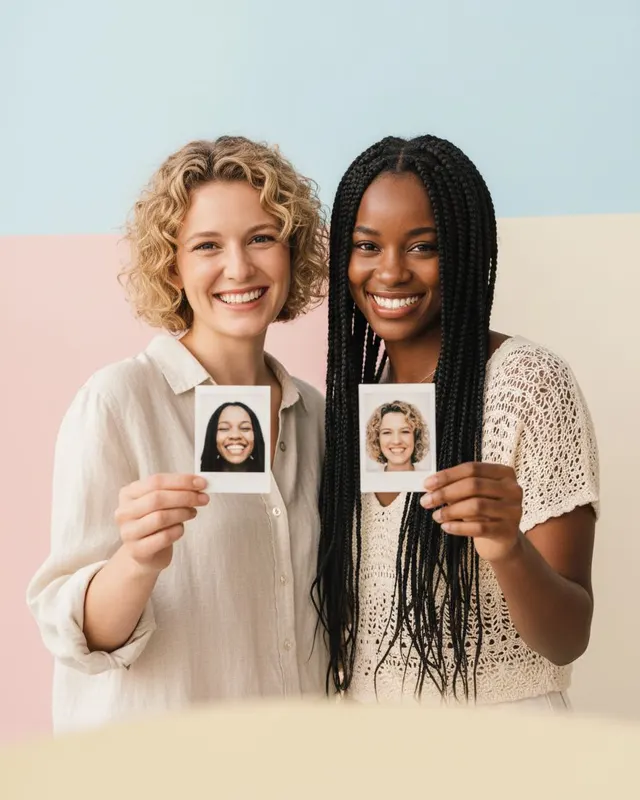
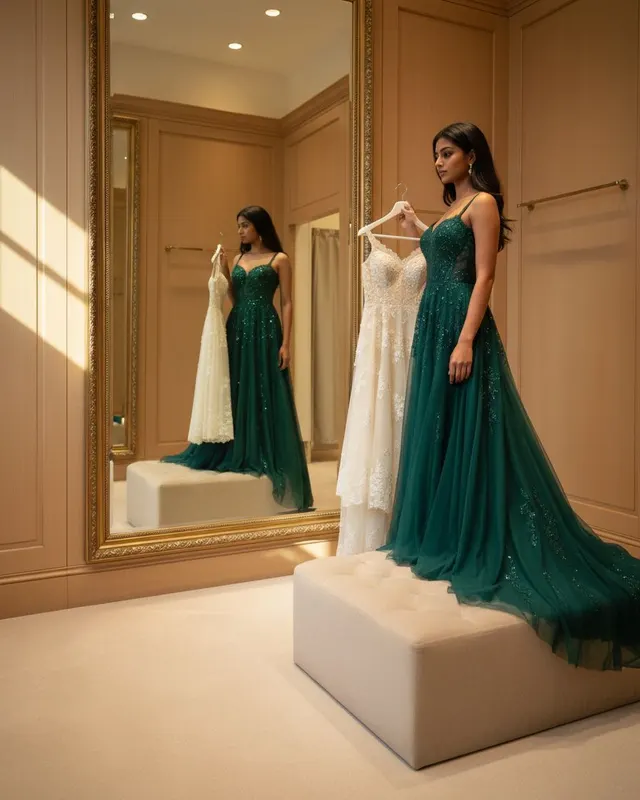
Trim people, clutter or empty space from the edges of a photo.
Crop images with an interactive selection box and real-time preview. Everything happens in your browser.
Your image opens here
Upload a photo to start cropping. The editor shows a live crop box you can move and resize.
This image cropper lets you cut away the parts of a photo you do not want. Upload an image, drag the crop box into place, resize it with the handles or draw a new selection, then apply the crop and download the result. It runs in your browser, so your image is not uploaded, and there is no sign up or watermark.
The crop is made from your original image at full resolution, not from the smaller preview on screen. After cropping, you can resize the image to an exact pixel size, rotate it if it is sideways, or compress it for the web. If you want more canvas around a photo instead of less, the AI Image Expander can extend it.
Click Upload Image to Crop and pick a photo. It opens in the editor with a crop box covering the middle half.
Drag inside the box to move it, drag any of the 8 handles to resize it, or click and drag on the image to draw a new box.
Press Apply Crop to preview the result, then Download Cropped Image. Use Crop Another Image to start again.
Trim people, clutter or empty space from the edges of a photo.
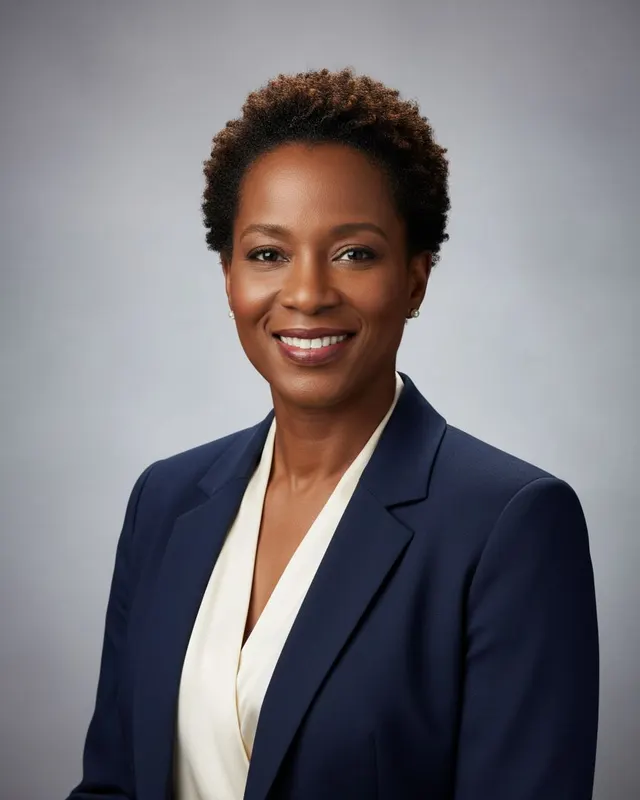
Frame your face for avatars, CVs and social profiles.
Cut a wide photo down to a tighter frame for feeds and stories.
Keep just the part of a screenshot, receipt or document that matters.
Center products and remove empty background around them for listings.
Use the rule-of-thirds grid to put your subject in a stronger position.
Cropping runs in your browser, so the photo never leaves your device.
The crop box works with touch, so you can crop photos on your phone.
When your photo loads, a crop box appears over the middle half of it, with a rule-of-thirds grid inside. You have three ways to adjust it:
The box always stays inside the image. When you are happy, press Apply Crop. The preview updates to show only the cropped area so you can check it before you press Download Cropped Image. If the result is not right, choose Crop Another Image and load the photo again.
The cropper is freeform: there are no fixed ratio presets such as 1:1 or 16:9. If you need an exact size, crop to roughly the right shape here, then set the exact pixels in the image resizer.
Composition tip: before you crop, decide what the photo is about. Leave a little space in the direction a person is looking or a car is moving, keep horizons level, and avoid cutting through joints such as wrists or knees at the frame edge. Small changes to the crop often make a bigger difference than any filter.
The editor shows a scaled-down preview so large photos fit on your screen, but the crop is calculated back to the original pixels. A crop of a 12 MP phone photo keeps every pixel inside the area you selected.
The cropped image is exported as a lossless PNG image, so no extra compression artifacts are added. That can make the file larger than a JPG original. If size matters, send the result through the image compressor or convert it with PNG to JPG. The downloaded file keeps your original name with _cropped added.
The cropper handles one image at a time, because every photo needs its own framing. It opens any image your browser can display, including JPG, PNG, WebP and GIF (animated GIFs are cropped as a still frame). iPhone HEIC photos may not open in every browser, so convert them with the HEIC to JPG converter first.
Everything happens on your device: the photo is read by your browser, drawn onto a canvas and cropped there. Nothing is uploaded, and your original file is never changed.
Cropping removes the edges of a picture. It is often combined with, or confused with, these other edits:
A common workflow for social posts is crop, resize, then compress: crop to the shape you want, set the exact pixels in the image resizer, then shrink the file with the image compressor. All three run in your browser and are free.
For portraits, a tight crop around the head and shoulders makes a stronger profile picture than a full-body shot. If you want a polished, studio-style result rather than just a crop, the AI Professional Headshot tool generates one from your selfie.
Still stuck? Contact us.