
New

AI Video Generator

Turn a text prompt into a video, or bring a photo to life. HD clips with sound, ready in under a minute.

0 / 1500
Duration
Aspect ratio

You'll be asked to sign in with Google before generating.

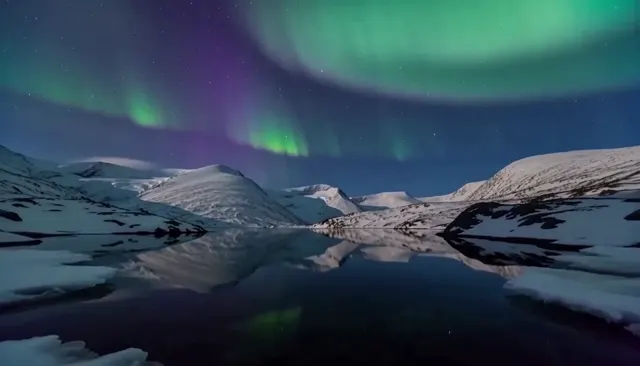
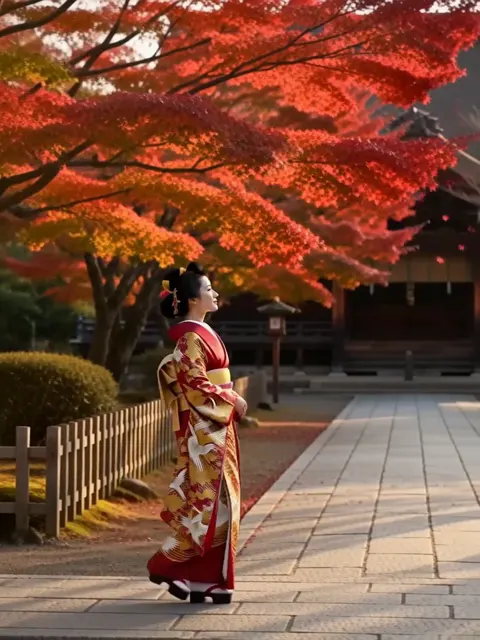
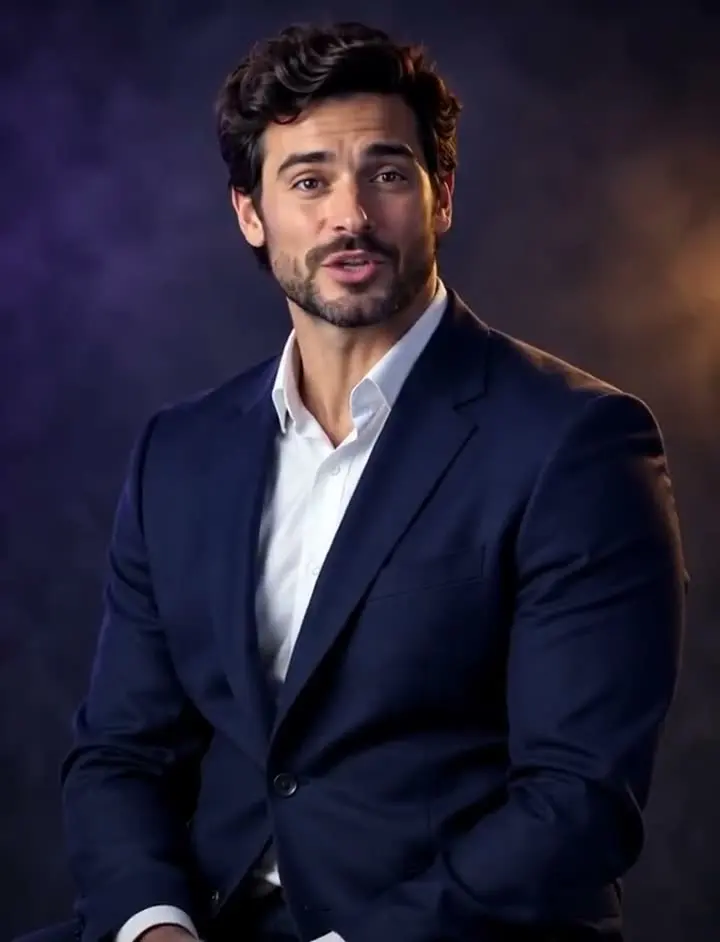
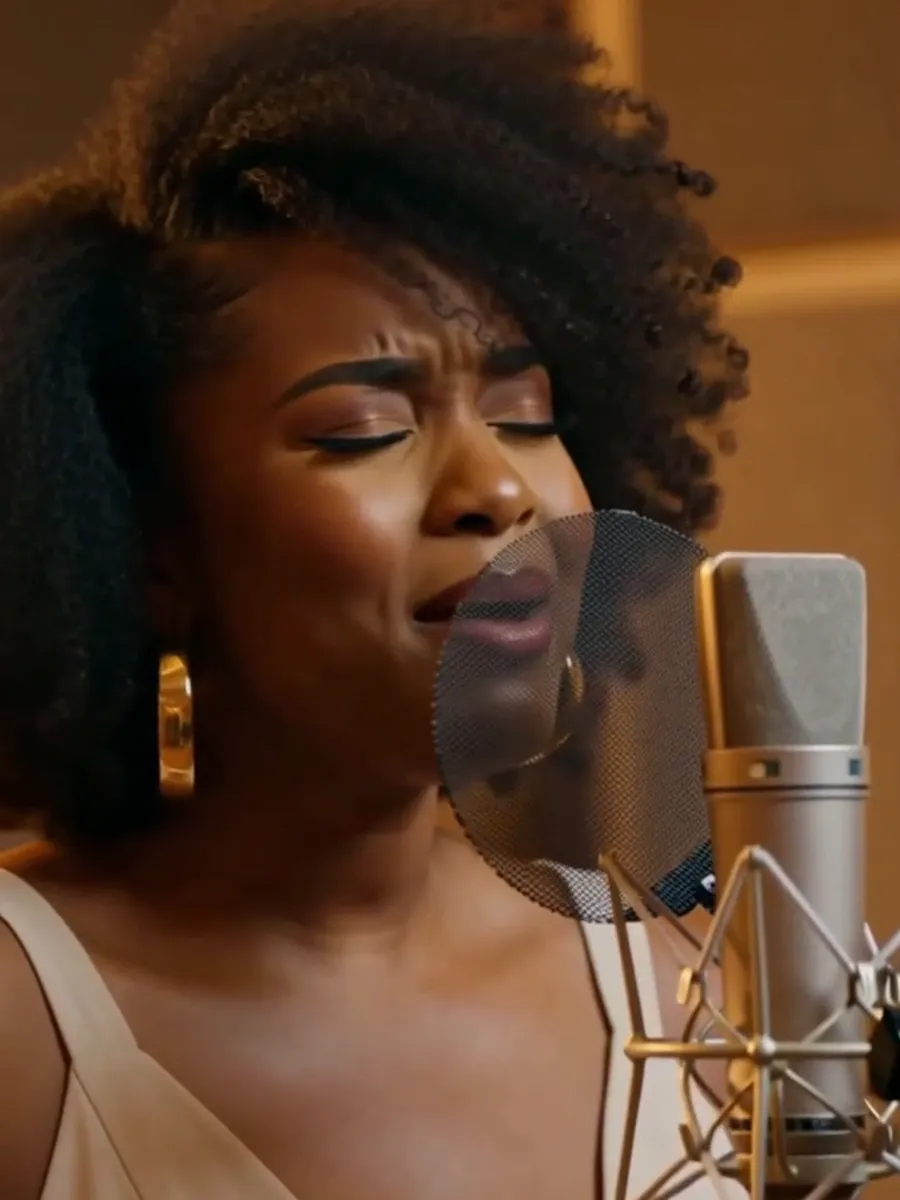
Example · made with RegiAI

The RegiAI AI video generator does two jobs on one page. Type a prompt and it films the scene from scratch, or upload a photo and it animates that picture into a moving clip. Every result is a 5 or 10 second HD video (768p) with sound, ready in a minute or two, with no watermark on the download.

If you already know which mode you need, the focused pages are a little quicker: Text to Video AI is built around writing prompts and picking a format, and Image to Video AI is built around animating one photo. For a finished short with voice-over and captions, use AI Script to Video instead.

How to use AI Video Generator

  1. 1

    Pick text or image mode

    Text to Video builds the whole scene from your words. Image to Video keeps your uploaded photo as the first frame and moves it.

  2. 2

    Describe the shot

    Name the subject, what it does, where it is and how the camera moves. In image mode, describe only the motion you want.

  3. 3

    Choose length and format, then generate

    Pick 5 or 10 seconds and an aspect ratio, generate, and download the MP4. It is also saved in My creations for 30 days.

What you can make

TikTok, Reels and Shorts

Vertical 9:16 clips for short-form feeds, from a one-line prompt.

Product and ad shots

Upload a product photo and add a slow push-in, a turntable spin or falling light.

Living photos

Give portraits, landscapes and artwork subtle motion: hair in the wind, drifting clouds, moving water.

B-roll for edits

Establishing shots, city streets, nature and abstract loops to cut between talking segments.

Intros and title cards

Short cinematic openers for YouTube videos, podcasts and presentations.

Concept and mood tests

Try a look, a location or a lighting idea before you shoot or storyboard it.

Travel and places

Drone-style shots of mountains, coastlines and cities for travel reels.

Animate AI art

Make a still from the AI Image Generator move, so the style stays exactly as you designed it.

Text to video or image to video: which mode to use

Both modes use the same video model, the same prices and the same 5 or 10 second lengths. The difference is how much control you want over the first frame.

  • Text to video is best when you do not have a picture yet. The model invents the subject, setting and lighting from your prompt, and you choose the aspect ratio: 16:9, 9:16, 1:1, 4:3 or 3:4. Good for B-roll, scenery, moods and quick ideas. The dedicated text to video AI page has prompt examples to start from.
  • Image to video is best when a specific face, product, character or art style must stay the same. Your photo becomes the opening frame and the video follows its aspect ratio. Use the image to video AI page if this is all you need.

A useful workflow is to design the first frame in the AI Image Generator or Nano Banana, then bring it here in image mode. You get the exact composition you want, and the video model only has to add motion.

How to write prompts that give better AI videos

Video models respond well to the language of a shot list. A strong prompt usually has four parts: subject, action, setting and camera. For example: "A barista pours latte art in a sunny cafe, steam rising, slow push-in, shallow depth of field."

  • Keep one main action per clip. Five or ten seconds is enough for one clear movement, not a whole story.
  • Name the camera move: slow push-in, tracking shot, orbit, drone flyover, handheld, static tripod.
  • Add light and mood words such as golden hour, neon, overcast or candlelit.
  • In image mode, do not re-describe what is already in the photo. Describe what changes: "she turns and smiles", "waves roll in", "the camera slowly pulls back".
  • Prompts can be up to 1,500 characters, but two or three clear sentences usually beat a long list.

Need several connected shots with narration? The AI script to video tool plans three shots, records a voice and edits them together for you.

Price, length and what you get

RegiAI is pay per use. A 5 second video costs $0.50 and a 10 second video costs $1.00, taken from your credit balance. There is no subscription and no monthly minimum; credit packs start at $10. If a generation fails, the cost is refunded to your balance automatically.

Each result is an MP4 at 768p HD with sound. Videos are saved in your dashboard under My creations for 30 days, and you can delete them at any time. RegiAI does not add a watermark.

A simple way to keep costs down is to test ideas as 5 second clips, then generate the 10 second version once the prompt is right. Changing one thing at a time, such as the camera move or the light, shows you quickly what the model responds to.

After generating, you can keep going with the other video tools: make a clip longer with the AI Video Extender, sharpen it to 1080p with the AI Video Upscaler, or give a silent clip new sound effects with Video to Audio AI.

AI Video Generator FAQ

Still stuck? Contact us.

How does the AI video generator work?

You write a prompt, or upload a photo and describe the motion. RegiAI sends it to a video model that generates a 5 or 10 second clip with sound, usually in one to three minutes. When it is ready you can play it on the page and download the MP4.

Is the AI video generator free?

No. Video generation is one of the more expensive AI tasks, so it is pay per use: $0.50 for 5 seconds and $1.00 for 10 seconds. There is no subscription, and failed generations are refunded automatically. The one free generation a day applies only to tools priced at $0.10 or less.

What is the difference between text to video and image to video?

Text to video creates the whole scene from your description. Image to video keeps your photo as the first frame and animates it, which is better when a face, product or art style has to stay the same. Both are on this page; Text to Video AI and Image to Video AI are focused versions of each mode.

How long can the videos be?

Each generation is 5 or 10 seconds. To make a clip longer, run it through the AI Video Extender, which adds about 6 seconds that continue the action. For a 12 to 20 second edited short with several shots, use AI Script to Video.

Which aspect ratios can I use?

In text mode you can pick 16:9 for YouTube, 9:16 for TikTok, Reels and Shorts, 1:1 square, 4:3 or 3:4. In image mode the video follows the shape of your uploaded photo, so crop the photo first if you need a specific format.

What resolution are the videos?

Videos are generated in HD at 768p. If you need 1080p, the AI Video Upscaler can upscale a clip up to 10 seconds long.

Do the videos have sound?

Yes, the model generates audio along with the video. If you want different ambience or sound effects on a silent or finished clip, try Video to Audio AI.

What photos work best for image to video?

A sharp JPG, PNG or WebP up to 10 MB, with a clear subject and some space around it. Photos of people should be of people who agreed to it. Avoid tiny, blurry or heavily compressed images, since the video starts from that exact frame.

Is there a watermark?

No. RegiAI does not add a watermark to AI results, and the MP4 you download is the full clip.

Can I use the videos commercially?

You can use results under our Terms of Service and the model provider's license. Do not upload photos of people without their permission, and do not use the tool to impersonate or mislead anyone.

Where are my videos saved?

Every video is saved in your dashboard under My creations for 30 days, so you can download it again later. You can delete any creation at any time.

Can I make a vertical video for TikTok or Reels?

Yes. In text mode choose 9:16 before generating. In image mode, upload a vertical photo, since the video follows the photo's shape. You can also make a matching cover with the AI YouTube Thumbnail Generator.

Why does my video not match my prompt exactly?

Video models interpret prompts rather than follow them word for word, and they struggle with many actions in one clip, readable text and exact counts of objects. Simplify to one subject and one action, name the camera move, and try again. For exact looks, create the first frame as an image and use image mode.

Can I put a real person in the video?

Only with their permission. Upload their photo in image mode to animate it, or use AI Talking Photo to make a portrait speak. Never use the tool to deceive, harass, impersonate or sexualize anyone.

Is there an API for video generation?

Yes. The AI video generator is available through the RegiAI API at the same prices. See the API docs.